How to Design a Custom T-Shirt from Scratch: Beginner's Complete Guide
Learn to design custom t-shirts step by step. Choosing styles, picking colors, typography basics, image resolution, and using free design tools. Start now.
Jordan Reeves
Brand Experience Strategist at RareCustom. BFA in Graphic Design from Parsons School of Design with 8+ years helping brands craft visual identities. Specialist in color theory, layout composition, and design systems.
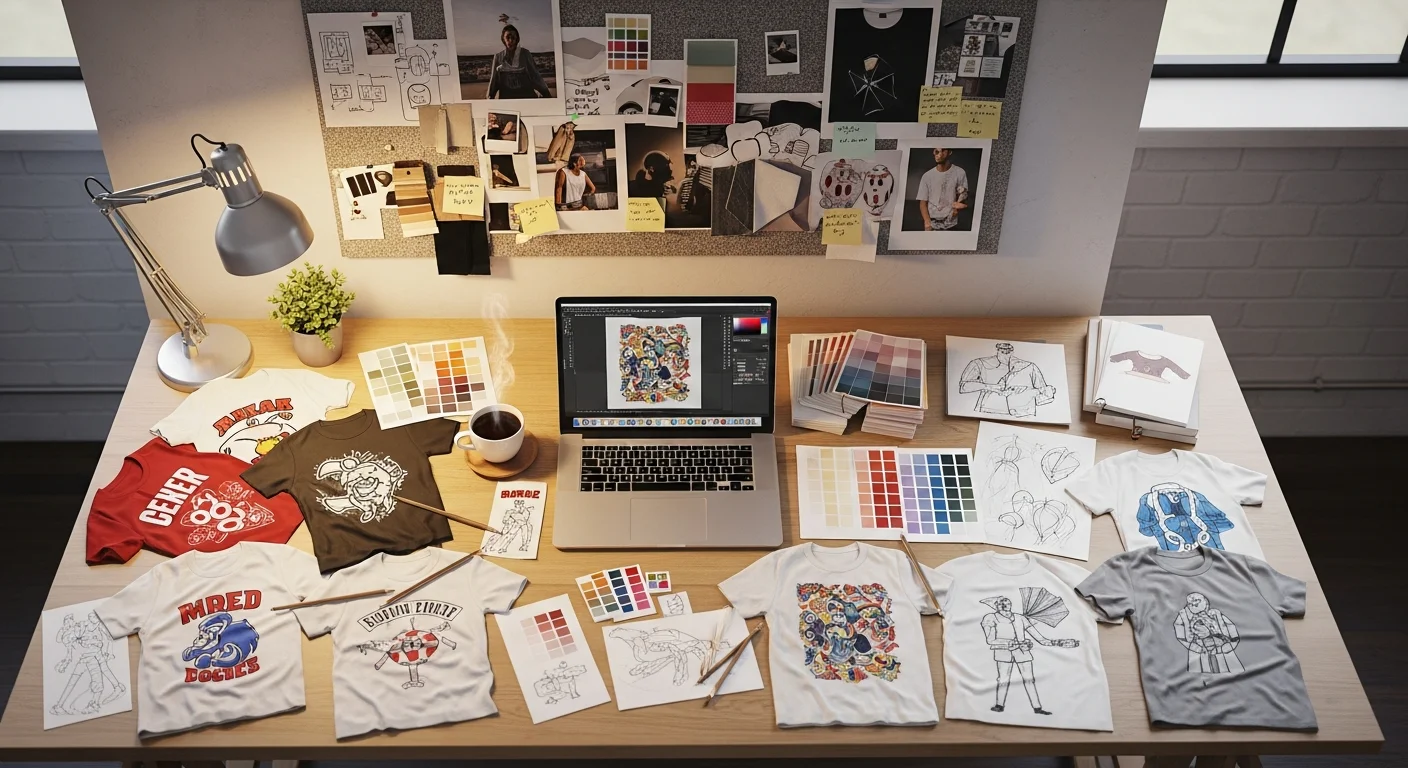
You do not need to be a professional graphic designer to create a custom t-shirt you will genuinely love wearing. With the right approach and a few foundational principles, anyone can transform a blank shirt into a personalized piece of wearable art. The key is understanding the basics of typography, color, placement, and file preparation before you start clicking buttons in a design tool.
This beginner's guide walks you through the entire custom shirt design process from defining your purpose to placing your final order. Whether you are creating a single personalized t-shirt for yourself, designing matching shirts for a group, or launching a graphic tee collection, these eight steps will help you achieve professional results every time.
Step 1: Define Your Purpose and Audience
Every great t-shirt design starts with a clear purpose. Before you open a t-shirt design maker or sketch a single idea, ask yourself two fundamental questions: who is this shirt for, and what should it communicate? The answers will guide every creative decision that follows.
A shirt designed for a bachelor party has a completely different tone than one created for a corporate team-building event. Family reunion shirts need to appeal to multiple generations, while a personal graphic tee design can be as niche and specific as you want. Understanding your audience determines the style, complexity, and messaging of your final design.
Consider the context in which the shirt will be worn. Event shirts are often worn for a single occasion, so bold, attention-grabbing designs work well. Everyday wear shirts need to be versatile enough to pair with jeans and jackets, which usually means simpler, more refined designs. Workplace or team shirts require a professional appearance that still feels approachable and comfortable.
Write down three words that describe the feeling you want your shirt to evoke. Fun, nostalgic, and bold. Professional, sleek, and modern. Edgy, artistic, and rebellious. These three words become your creative north star, helping you make consistent design choices as you work through the remaining steps of this DIY t-shirt design process.
Step 2: Choose Your Shirt Style and Color

The blank shirt is your canvas, and the style you choose affects how your design will look and feel in the real world. The classic crew neck tee is the most popular choice for custom t-shirts because it provides a clean, symmetrical canvas with ample print area on both front and back.
V-neck shirts offer a slightly dressier silhouette and work well for designs placed lower on the chest. Long-sleeve options provide additional print areas on the sleeves and are ideal for cooler weather events. Raglan shirts with contrasting sleeves create a sporty, retro vibe that pairs well with certain design styles. Pocket tees add a casual touch but limit the front print area to above or below the pocket.
Shirt color is just as important as the design itself because it serves as the background for your artwork. Light-colored shirts like white, ash gray, and sand are the most versatile because almost any design color shows up clearly against them. Dark-colored shirts like black, navy, and forest green create a dramatic backdrop that makes lighter design elements pop.
Fabric types significantly impact both the feel and the printability of your shirt. Standard cotton is the industry workhorse and works well with every printing method. Ringspun cotton offers a softer, smoother finish that elevates the perceived quality of the shirt. Tri-blend fabrics mix cotton, polyester, and rayon for a luxuriously soft, slightly stretchy feel that flatters most body types. Performance fabrics with moisture-wicking properties are ideal for athletic and outdoor events.
Step 3: Typography Basics for T-Shirts

Typography for t-shirts follows different rules than typography for print or web design. The most important factor is readability at a distance. Your text needs to be legible from at least ten feet away, which means choosing bold, clean fonts with generous sizing. A shirt design that looks perfect on your computer screen at arm's length may be completely unreadable across a room.
The golden rule of font selection for t-shirt design is to limit yourself to two fonts maximum. One font for the primary message and a complementary font for secondary text creates a cohesive, professional look. Using three or more fonts almost always results in a cluttered, chaotic design that dilutes the impact of your message.
Font pairing is an art, but a few simple principles make it accessible to beginners. Pair a bold display font with a simpler body font. Pair a serif with a sans-serif. Pair a script font with a clean, geometric font. The contrast between the two fonts creates visual interest without creating visual confusion. For a deep dive into the best font choices for shirts, read our guide on the 25 best fonts for custom t-shirt designs.
Minimum font sizes matter more than you might think. As a general rule, text smaller than half an inch tall on the finished shirt becomes difficult to read at conversational distance and may not print cleanly depending on the method. Headlines and primary messages should be at least one inch tall, while supporting text should stay above the half-inch minimum.
Step 4: Working with Images and Artwork
Images can make or break a t-shirt design, and the most common pitfall for beginners is using low-resolution artwork. For professional-quality prints, your images should be at least 300 DPI (dots per inch) at the actual print size. A photo that looks sharp on Instagram may be only seventy-two DPI, which will appear pixelated and blurry when printed on fabric.
The most print-friendly file formats are PNG files with transparent backgrounds and SVG files for vector graphics. PNG format preserves image quality and supports transparency, which means your design seamlessly integrates with the shirt color rather than sitting inside a visible rectangle. SVG files are even better for logos and text-based designs because they can be scaled to any size without losing quality.
Vector graphics are the gold standard for custom shirt design because they use mathematical paths rather than pixels to define shapes. This means a vector logo can be enlarged from a business card size to a poster size without any loss in sharpness or clarity. If you have access to your design in a vector format like AI, EPS, or SVG, always use it over a raster image like JPG or PNG.
If you are working with photographs or raster images, make sure the file dimensions are large enough for your intended print area. A design that will be printed at twelve inches wide needs a source image that is at least 3,600 pixels wide at 300 DPI. When in doubt, bigger is always better because you can scale down without quality loss but cannot scale up.
Step 5: Color Theory for Custom Shirts

Color theory might sound intimidating, but for t-shirt design it boils down to one essential principle: contrast. Your design needs enough contrast against the shirt color to be instantly visible and readable. A light yellow design on a white shirt is nearly invisible, while the same yellow on a black shirt creates a striking, eye-catching combination.
Limiting your color palette to three to five colors creates a cohesive, intentional look. Too many colors can make a design feel chaotic and unfocused. Start by choosing one dominant color for the primary design element, one or two supporting colors for secondary elements, and optionally an accent color for small details or highlights.
The relationship between your design colors and the shirt color is a crucial consideration that many beginners overlook. Light shirts work best with dark or vibrant design colors. Dark shirts need lighter or brighter design elements to maintain readability. Some printing methods handle this dynamic differently, which is worth reviewing in our screen printing vs DTG comparison guide.
Color psychology plays a subtle but meaningful role in how people perceive your design. Red communicates energy and excitement. Blue conveys trust and reliability. Green suggests nature and growth. Black projects sophistication and edge. Choose colors that align with the emotional tone you defined in Step 1, and your design will resonate more deeply with its intended audience.
Step 6: Design Placement and Sizing

Where you place your design on the shirt is just as important as the design itself. The standard print area for a front-centered design sits roughly four inches below the collar and extends to about twelve inches wide. This positioning ensures the design is visible above a waistband and centered on the torso regardless of the wearer's height.
Left chest prints are smaller designs placed over the heart area, typically three to four inches wide. This placement is the most common for logos, small emblems, and professional designs. It creates a clean, polished look that works for both casual and corporate settings.
Back prints offer the largest canvas on the shirt, with a print area that can extend up to fourteen inches wide and seventeen inches tall. Full-back designs create a dramatic visual impact and are popular for event shirts, sports teams, and statement pieces. Many successful designs use a combination of a small left chest logo on the front and a larger, more detailed design on the back.
Sleeve prints have gained popularity for adding subtle branding or decorative elements. The print area on a standard sleeve is typically three to four inches wide, which works well for small logos, numbers, or graphic accents. Consider using sleeve prints as a complement to your primary design rather than as the main visual element.
An oversized design that extends close to the edges of the shirt creates a bold, fashion-forward aesthetic that has been trending in streetwear and contemporary fashion. If you are going for an oversized placement, keep in mind that the design may wrap slightly around the sides of the shirt, which can affect legibility. Always preview oversized placements at their actual size before ordering.
Step 7: Using RareCustom's Free Design Tool

Once you have defined your purpose, chosen your shirt style, and prepared your design elements, it is time to bring everything together in the RareCustom design tool. This free online designer allows you to create professional-quality t-shirt designs without installing any software or possessing any prior design experience.
Start by selecting your shirt style and color from our product catalog. The design tool loads a realistic t-shirt mockup that updates in real time as you add elements to your design. This live preview feature eliminates the guesswork by showing you exactly how your finished shirt will look before you commit to an order.
Upload your own artwork using the image upload feature, which accepts PNG files, SVG files, JPG, and PDF formats. The tool automatically detects the resolution and dimensions of your uploaded file and warns you if the quality is insufficient for the selected print size. You can also add text directly in the tool using our library of hundreds of fonts, adjusting size, color, spacing, and alignment with intuitive controls.
For those who prefer a starting point over a blank canvas, the tool offers design templates organized by category. Browse templates for events, businesses, sports teams, and more, then customize them with your own text, colors, and images. Templates are an excellent way to achieve a professional layout without starting from zero, and they are fully editable to match your specific vision.
Before finalizing your design, use the preview feature to view your creation on multiple shirt colors. This step often reveals contrast issues or color combinations that need adjustment. Share the mockup with friends, family, or your team for feedback before placing the order.
Step 8: Review, Preview, and Approve
The final review stage is your last opportunity to catch errors before your design goes to production. Apply the five-second test: show your design to someone who has never seen it before and ask them what it says or communicates. If they cannot immediately understand the primary message, your design needs simplification.
Check every text element for spelling errors. Misspelled words on a printed shirt are permanent and embarrassing, so review every letter carefully. Read the text backward, word by word, to catch typos that your brain might autocorrect during normal reading. If possible, have at least two other people proofread the text independently.
Verify alignment and centering by zooming in on each element. Even a slight misalignment that is invisible at full zoom becomes glaringly obvious on a printed shirt. Most design tools include alignment guides and snap-to-grid features that help ensure precision. Use them.
Finally, preview your design on different shirt colors using the mockup generator. Your design might look perfect on white but unreadable on heather gray. Testing multiple backgrounds gives you confidence that your color choices work in all contexts and helps you recommend the best shirt color to your group or customers.
10 Common Design Mistakes Beginners Make

Learning from others' mistakes saves time, money, and frustration. Here are the ten most common errors that first-time custom shirt designers make, along with guidance on how to avoid each one.
- Too many fonts. Using three or more fonts creates visual chaos. Stick to two fonts maximum for a clean, professional appearance.
- Low-resolution images. Uploading images below 300 DPI results in pixelated, blurry prints. Always verify your image resolution before designing.
- Ignoring print margins. Designs placed too close to the edge of the print area may be cut off during production. Leave at least a quarter inch of margin on all sides.
- Poor color contrast. Light text on light shirts or dark text on dark shirts is unreadable. Test your design against the actual shirt color before ordering.
- Designs that are too large or too small. An enormous front print looks overwhelming, while a tiny design gets lost on the shirt. Follow the standard sizing guidelines for each placement area.
- Not accounting for shirt folds. A centered design looks different when the shirt is being worn versus laying flat. Creases and body contours can distort complex designs.
- Forgetting the back. Many beginners focus exclusively on the front and miss the opportunity to add a complementary back design or event details.
- Overthinking the design. Simple designs almost always look better than complex ones. A clean, minimalist tee with a strong message outperforms a cluttered design every time.
- Not ordering a sample. If you are ordering a large batch, investing in a single sample shirt first lets you verify colors, placement, and sizing before committing to the full order.
- Skipping spell check. It happens more often than you would think. Triple-check every word before submitting your design to production.
Inspiration: Before and After Design Examples
Sometimes seeing a transformation is the most effective way to understand design principles in action. Here are three real-world examples of beginner designs that were improved using the principles outlined in this guide.
Example 1: Corporate Team Shirt. The original design featured a company logo stretched to fill the entire front of the shirt with five different fonts and a rainbow color palette. The improved version placed the logo at standard left-chest size, used the company's two brand colors only, and paired the logo with a single clean font for the team name on the back. The result went from chaotic to polished and professional.
Example 2: Birthday Party Shirt. The before version used a low-resolution photo of the birthday person surrounded by clip art and tiny unreadable text. The after version replaced the photo with a high-resolution vector illustration in a vintage aesthetic style, used one bold font for the name and one script font for "Birthday Bash," and limited the color palette to gold and black on a white shirt. The transformation was dramatic.
Example 3: Charity 5K Run Shirt. The initial design crammed the event name, date, sponsors, route map, and participant list all onto the front of the shirt. The redesign moved the event name and date to the front with a clean graphic element, placed the sponsors on the back in an organized grid, and eliminated the route map and participant list entirely. The shirt went from a visual disaster to something runners proudly wore for months afterward.
Start Designing Your Custom T-Shirt
You now have every tool you need to create a custom t-shirt that looks like it was designed by a professional. Head to the RareCustom design tool to start building your design right now. It is completely free to use with no commitment required until you are ready to order.
Remember, no design experience is necessary. Our intuitive tool, combined with the principles you learned in this guide, empowers you to create something you will be proud to wear. Start with a simple concept, follow the eight steps outlined above, and you will be amazed at what you can produce.
Every order ships free with no minimum quantity. Order one shirt as a test or a thousand for your organization. Check our size guide for measurement details, and visit how it works for an overview of the process from design to doorstep.
Related Articles
Share this article
Written by
Jordan Reeves
Brand Experience Strategist at RareCustom. BFA in Graphic Design from Parsons School of Design with 8+ years helping brands craft visual identities. Specialist in color theory, layout composition, and design systems.