T-Shirt Design Resolution and DPI Guide: How to Get Sharp, Professional Prints Every Time
Understand t-shirt design resolution and DPI requirements for crisp, professional prints. Learn minimum dimensions, file preparation, and how to avoid blurry custom shirt designs.
Tony Vu
Founder & President of RareCustom. B.S. Industrial Engineering from Texas A&M. Tony's technical background helps him translate print production requirements into clear, actionable guidance for custom t-shirt designers.
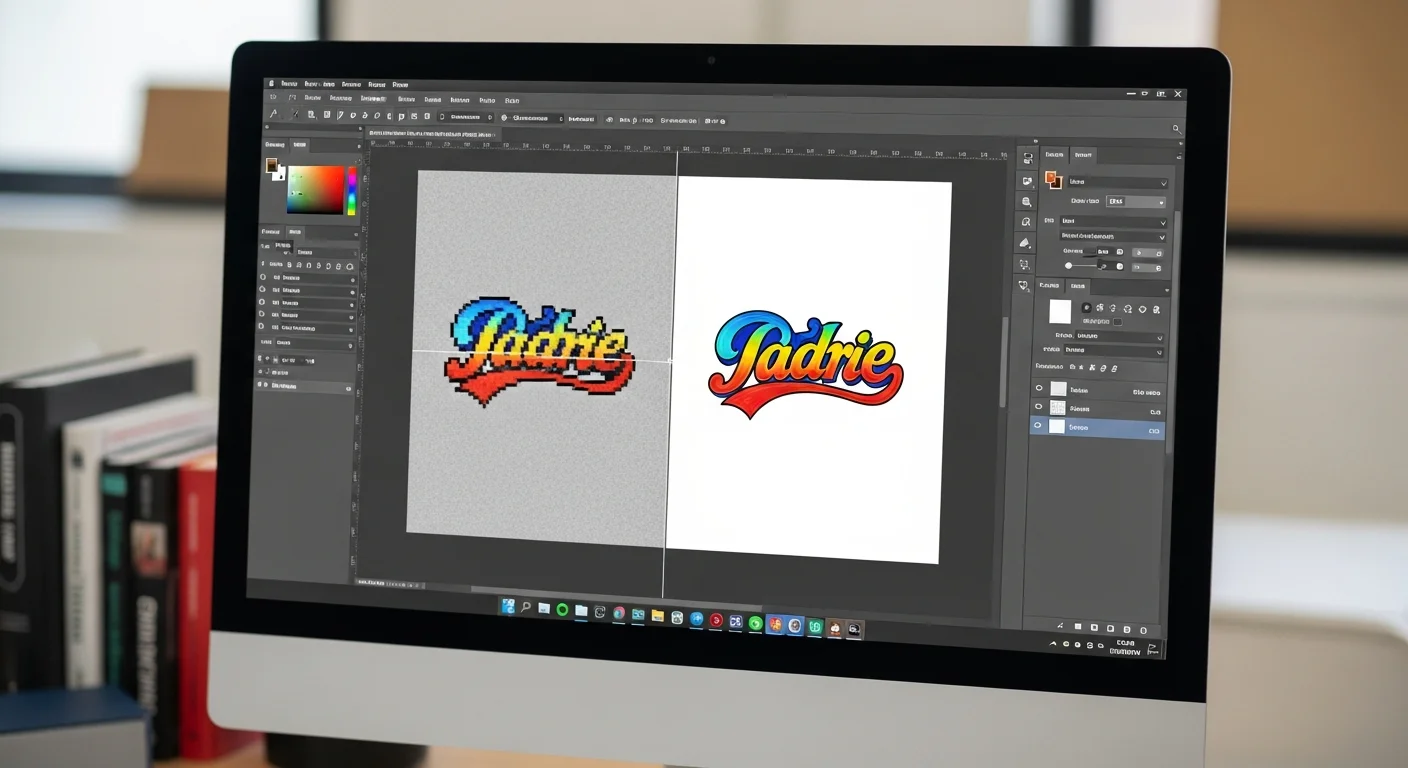
Nothing ruins a custom t-shirt faster than a blurry, pixelated print. You invest time in choosing the perfect design, selecting ideal colors, and coordinating sizes for your group, only to receive shirts with fuzzy graphics that look like they were printed through frosted glass. The culprit is almost always inadequate image resolution, and it is one of the most common and most preventable mistakes in custom apparel production. Understanding resolution, DPI, and pixel dimensions is not just technical knowledge; it is the single most important skill for ensuring your custom shirts look sharp and professional.
This guide breaks down everything you need to know about t-shirt design resolution and DPI in plain, practical language. Whether you are a first-time designer uploading a photo to a print-on-demand platform or a seasoned graphic designer preparing files for a commercial screen printing run, these principles will help you deliver print-quality artwork every time. Before you finalize your next design, bookmark this page and use it as your pre-flight checklist for sharp, professional custom t-shirts.
What Is DPI and Why It Matters for T-Shirt Printing
DPI stands for dots per inch, and it measures the density of printed dots within a linear inch of output. In the context of t-shirt printing, DPI determines how much detail your printed design can reproduce. Higher DPI means more dots per inch, which translates to finer detail, smoother gradients, and sharper text. Lower DPI means fewer dots per inch, resulting in visible pixelation, jagged edges, and blurred details.
Think of DPI like the thread count of bed sheets. A sheet with a thread count of one hundred feels coarse and you can see individual threads. A sheet with a thread count of four hundred feels smooth and the individual threads are invisible to the naked eye. Similarly, a print at seventy-two DPI shows individual pixels clearly, while a print at three hundred DPI appears smooth and continuous to the human eye.
For t-shirt printing specifically, the minimum acceptable DPI varies by print method, but the universal standard is three hundred DPI at the final printed size. This means that if your design will be printed at twelve inches wide, your file needs to be twelve inches wide at three hundred DPI, which equals 3,600 pixels across. This standard ensures that no individual pixel is visible to the naked eye at normal viewing distance, producing a professional-quality result.
Submitting artwork below the required DPI is the number one reason custom shirt prints turn out blurry. Printers will often proceed with whatever resolution you provide, and the equipment will attempt to stretch inadequate pixel data across the intended print area, creating the soft, fuzzy, unprofessional look that every designer and customer wants to avoid.
Resolution vs. Dimensions Explained
One of the most common points of confusion in print file preparation is the difference between resolution (DPI) and pixel dimensions. These are related but distinct concepts, and understanding their relationship is critical for preparing print-ready files.
Pixel dimensions describe the total number of pixels in your image, expressed as width times height. An image that is 3,000 pixels wide and 4,000 pixels tall has dimensions of 3,000 by 4,000. This number is fixed and represents the actual data content of your file. You cannot increase pixel dimensions without either creating new data through upscaling algorithms or accepting interpolated, lower-quality pixels.
Resolution (DPI) describes how those pixels are distributed across a physical print area. The same 3,000-pixel-wide image can be printed at different sizes depending on the DPI setting. At three hundred DPI, it prints at ten inches wide (3,000 divided by 300). At one hundred fifty DPI, it prints at twenty inches wide (3,000 divided by 150). The pixel data is identical in both cases; the difference is how densely those pixels are packed into the printed output.
This relationship means that DPI alone is meaningless without knowing the print size. A file set to three hundred DPI in Photoshop but only 500 pixels wide will only print at 1.67 inches at that resolution, far too small for most t-shirt designs. Conversely, a massive file at seventy-two DPI might still contain enough pixels to print beautifully once the DPI is recalculated for the intended print dimensions.
The Simple Formula
The relationship between pixels, DPI, and print size follows a simple formula: Print Size (inches) = Pixel Dimensions / DPI. Inversely, Required Pixels = Print Size (inches) x DPI. This formula is your most powerful tool for determining whether your artwork is suitable for printing and what size it can be printed at without quality loss.
Minimum DPI Requirements by Print Method
Different t-shirt printing methods have varying resolution requirements due to the mechanical differences in how they apply ink to fabric. Understanding these minimums helps you prepare files that meet or exceed the quality threshold for your chosen production method.
| Print Method | Minimum DPI | Recommended DPI | Notes |
|---|---|---|---|
| Screen Printing | 200 DPI | 300 DPI | Vector preferred; halftone screens limit detail anyway |
| DTG (Direct-to-Garment) | 200 DPI | 300 DPI | Higher DPI improves fine detail and gradient quality |
| Sublimation | 200 DPI | 300 DPI | All-over prints benefit from higher resolution |
| Heat Transfer Vinyl | N/A (vector) | Vector format | Cut from solid sheets; resolution not applicable |
| DTF (Direct-to-Film) | 200 DPI | 300 DPI | Film printer resolution affects output quality |
| Embroidery Digitizing | N/A | Clean vector art | Converted to stitch file; high-res source helps digitizer |
While many methods technically accept files at two hundred DPI, submitting at three hundred DPI is strongly recommended as a universal best practice. The additional data gives the printing software more information to work with, resulting in marginally sharper output and providing a safety margin for any scaling adjustments that may occur during production. The file size difference between two hundred and three hundred DPI is minimal compared to the quality improvement.
For screen printing specifically, vector artwork bypasses the DPI question entirely because vector files are mathematically defined shapes that scale infinitely without quality loss. If your design consists of solid colors, text, and clean graphic elements, creating it as a vector file in Adobe Illustrator or a similar program is always the best approach. For a complete breakdown of file formats, read our file formats guide for t-shirt printing.
Pixel Dimensions for Common Print Sizes
Below is a quick reference table showing the pixel dimensions required for common t-shirt print areas at three hundred DPI. Use this chart to verify that your design files contain sufficient pixel data before submitting for production.

| Print Area | Size (inches) | Pixels Required (300 DPI) |
|---|---|---|
| Left Chest Logo | 4 x 4 | 1,200 x 1,200 |
| Standard Front Print | 10 x 12 | 3,000 x 3,600 |
| Full Front Print | 12 x 16 | 3,600 x 4,800 |
| Full Back Print | 12 x 14 | 3,600 x 4,200 |
| Sleeve Print | 3 x 4 | 900 x 1,200 |
| Pocket Print | 3.5 x 3.5 | 1,050 x 1,050 |
| All-Over Print (Full Shirt) | 20 x 28 | 6,000 x 8,400 |
| Oversized Back Statement | 14 x 16 | 4,200 x 4,800 |
These dimensions represent the minimum for professional quality. Creating your artwork slightly larger than the intended print size is a smart practice because it gives you room to adjust placement without cropping into the design area. An extra half-inch of bleed on each side is standard industry practice and prevents white edges from appearing if the print registration shifts slightly during production.
How to Check Your Image Resolution
Before submitting any file for custom t-shirt printing, verifying the resolution is an essential step. Fortunately, checking resolution is straightforward in every major design application and even in basic operating system tools.
In Adobe Photoshop, navigate to Image, then Image Size. This dialog displays the pixel dimensions, document size in inches or centimeters, and the current resolution in DPI. Ensure that "Resample" is unchecked when evaluating the relationship between dimensions and resolution. With Resample unchecked, changing the DPI will automatically adjust the print size to reflect how many pixels are available, giving you an honest assessment of your file's print capability.
In Adobe Illustrator, resolution applies to embedded raster images rather than the vector artwork itself. Select any placed or embedded raster image and check the Links panel for resolution information. Vector elements within your Illustrator file are resolution-independent and will print sharply at any size.
On Windows, right-click any image file, select Properties, then click the Details tab. The horizontal and vertical resolution values are displayed in DPI alongside the pixel dimensions. On Mac, open the image in Preview, go to Tools, then Show Inspector (or press Command-I). The dimensions and resolution are displayed in the General Info panel.
Online tools like Photopea (a free browser-based Photoshop alternative) also display image size and resolution information under Image and then Canvas Size, making it accessible for designers who do not have Adobe software installed. For mockup and preview best practices, see our custom t-shirt mockup and preview guide.
The Limitations of Upscaling Low-Resolution Images

A common misconception is that low-resolution images can be fixed by upscaling them in Photoshop or other software. While upscaling tools have improved dramatically with AI-powered solutions like Topaz Gigapixel and Adobe's Super Resolution, the fundamental limitation remains: you cannot create detail that does not exist in the original file.
Traditional upscaling algorithms like bicubic interpolation work by averaging neighboring pixel colors to create new pixels. The result is a smoother but softer image that lacks the crisp edges and fine detail of a natively high-resolution file. Text becomes slightly fuzzy, edges lose their sharpness, and subtle details blur together. For simple graphics with clean lines, the degradation may be acceptable. For photographs and detailed artwork, it is usually noticeable and disappointing.
AI upscaling tools have raised the bar significantly by using machine learning to predict and generate plausible detail during the enlargement process. These tools can produce remarkably good results, especially for photographs with recognizable subjects. However, even the best AI upscaling introduces artifacts and makes assumptions about detail that may not match the original subject. For professional print applications, AI upscaling should be considered a rescue tool for borderline-acceptable files rather than a substitute for starting with adequate resolution.
The takeaway is clear: always start with the highest resolution source material available. If you are photographing subjects for t-shirt prints, shoot at the highest resolution your camera offers. If you are downloading stock images, purchase the largest available size. If you are working with a client's logo, request the original vector file rather than a screen-resolution JPEG pulled from their website.
Vector vs. Raster: Resolution Differences That Matter
Understanding the fundamental difference between vector and raster graphics is essential for t-shirt designers because it determines whether resolution is even a relevant concern for your particular design.
Raster images (JPEG, PNG, TIFF, PSD) are composed of a fixed grid of pixels. Each pixel holds a specific color value, and the total number of pixels determines the maximum size at which the image can be printed clearly. Raster images are resolution-dependent, meaning they have an absolute quality ceiling that cannot be exceeded without quality loss. Photographs and detailed photographic artwork are inherently raster because they capture continuous-tone imagery that can only be represented as pixel grids.
Vector graphics (AI, EPS, SVG, PDF) are defined by mathematical formulas that describe shapes, curves, and colors. Because these formulas can be calculated at any scale, vector graphics are resolution-independent, meaning they produce equally sharp output whether printed on a business card or a billboard. Logos, typography, icons, and clean graphic designs are ideal candidates for vector creation.
For custom t-shirt design, the ideal approach is to create all text, logos, and graphic elements as vector artwork and only use raster elements for photographic imagery or complex textures that cannot be represented as vector shapes. This hybrid approach ensures maximum sharpness for clean design elements while accommodating the raster nature of photographs. For comprehensive file format guidance, our file formats for t-shirt printing guide covers vector and raster best practices in detail.
Resolution Requirements for Photo-Based Designs
Photo-based t-shirt designs present unique resolution challenges because photographs are inherently raster and cannot be converted to resolution-independent vector format. The quality of your printed photo tee depends entirely on the resolution and quality of the source photograph.
Smartphone cameras have made it easier than ever to capture high-resolution photos suitable for printing. Modern smartphones capture images at twelve to fifty megapixels, which translates to pixel dimensions well beyond what most t-shirt print areas require. A twelve-megapixel image (approximately 4,000 by 3,000 pixels) can produce a sharp print at 13.3 by 10 inches at three hundred DPI, more than sufficient for a standard front print.
The challenge with phone photos is not usually pixel count but image quality factors like focus, lighting, and compression. A perfectly focused, well-lit twelve-megapixel photo will print beautifully. A dark, noisy, slightly out-of-focus photo at the same resolution will print with every flaw amplified. Print reveals imperfections that screens hide, so critically evaluate your photos at one hundred percent zoom before committing to printing.
For pet photos, family portraits, and other personal photo tees, encourage the source images to be taken in good natural lighting, at the camera's highest quality setting, and with steady focus on the primary subject. These basic photography practices yield source files that translate beautifully to fabric. For specific guidance on photo shirt design, explore our pet photo custom t-shirt design guide.
Screen Resolution vs. Print Resolution
One of the most critical concepts for t-shirt designers to understand is the dramatic difference between screen resolution and print resolution. This gap is the root cause of most print quality disappointments.
Computer monitors, tablets, and smartphones display images at seventy-two to one hundred sixty pixels per inch, depending on the device. At these low pixel densities, images that are relatively small in pixel dimensions appear perfectly sharp and detailed on screen. A 500 by 500 pixel logo looks crisp and clear on a standard monitor because the screen only needs seventy-two pixels per inch to render a smooth image.
Print, however, requires three hundred pixels per inch to achieve the same perceived smoothness. That same 500 by 500 pixel logo that looked perfect on screen will only print at 1.67 inches square at print resolution, far smaller than intended. If forced to print at a larger size, the printer must stretch those 500 pixels across a wider area, creating visible pixelation and blurriness.
This screen-to-print gap catches many designers off guard, especially those accustomed to web design where seventy-two DPI is standard. The solution is simple: always evaluate your designs by the numbers (pixel dimensions and intended print DPI) rather than by how they look on screen. A file that looks enormous and sharp on your twenty-seven-inch monitor may still be woefully inadequate for a twelve-inch chest print.
File Compression and Quality Loss
File compression is another silent destroyer of print quality. Every time an image is saved in a lossy format like JPEG, data is permanently discarded to reduce file size. This compression is barely noticeable at high quality settings on screen, but the cumulative effect of multiple saves, downloads, and re-saves can significantly degrade print quality.
JPEG compression works by grouping pixels into blocks and averaging their color values. At high compression levels, these blocks become visible as artifacts, particularly in areas of solid color, smooth gradients, and sharp edges, exactly the areas where t-shirt prints need to look clean. A logo saved as a high-compression JPEG will exhibit blocky artifacts around the edges that become glaringly obvious when printed at twelve inches on a shirt.
Best practices for preserving quality include saving working files in lossless formats like PSD, TIFF, or PNG. Only convert to JPEG for web use or file sharing, and always keep the original lossless file for print production. When you must use JPEG, save at maximum quality (level ten or higher in Photoshop, or quality ninety-five percent or above in other software) to minimize compression artifacts.
Social media downloads are a frequent source of quality problems. Images downloaded from Instagram, Facebook, or Pinterest have been aggressively compressed by these platforms to reduce bandwidth costs. A photo that was originally twenty megapixels may be served as a one-megapixel JPEG when downloaded from social media. Never use social media downloads as source files for printing. Always go back to the original file from the camera or design software.
Tools to Check and Improve Image Resolution
Several tools and software options help you evaluate, optimize, and when necessary, improve the resolution of your design files before submitting them for printing.
Adobe Photoshop remains the industry standard for resolution management. The Image Size dialog provides complete control over pixel dimensions, document size, and resolution. The Content-Aware Scale and Preserve Details upsampling algorithms offer the best built-in upscaling for borderline files. Photoshop's Save for Web function also provides precise control over compression quality when exporting final files.
GIMP is a free, open-source alternative that provides similar resolution checking and adjustment capabilities. Navigate to Image, then Scale Image to view and modify pixel dimensions and resolution. GIMP's upscaling algorithms are serviceable for moderate enlargements, though they lag behind Photoshop's latest AI-enhanced options.
Canva, popular among non-designers creating custom shirt artwork, exports at up to three hundred DPI in its Pro plan. When using Canva, ensure your canvas dimensions are set to the intended print size at three hundred DPI before you begin designing. Our guide to designing t-shirt artwork in Canva walks through the process step by step.
AI upscaling tools like Topaz Gigapixel AI, Adobe Firefly Enhance, and free online options like Let's Enhance provide machine-learning-powered enlargement for photos that are slightly below the required resolution. These tools work best for photographic content and can credibly double the dimensions of a well-exposed photograph while maintaining reasonable sharpness.
Preparing Files at the Correct DPI: A Step-by-Step Process
Follow this workflow to ensure every design file you submit for custom t-shirt printing meets professional resolution standards.
Step 1: Determine Your Print Dimensions
Decide the exact size your design will be printed on the shirt. A standard front chest print is approximately ten by twelve inches, a left chest logo is four by four inches, and a full-back print is twelve by fourteen inches. Your printer can provide their specific maximum print area dimensions.
Step 2: Calculate Required Pixels
Multiply your print width and height by three hundred. For a ten-by-twelve-inch print, you need 3,000 by 3,600 pixels minimum. Write these numbers down and use them as your target throughout the design process.
Step 3: Set Up Your Canvas Correctly
In your design software, create a new document at the required pixel dimensions and set the resolution to three hundred DPI. Starting with the correct canvas size prevents resolution issues from the very beginning and eliminates the need for upscaling later.
Step 4: Use High-Resolution Source Material
Every image, texture, and graphic element you import into your design should meet or exceed the three hundred DPI requirement at the size it will appear in the final composition. Check each imported element individually before incorporating it into your design.
Step 5: Export Properly
Save your final file as a PNG with transparency (for designs without a background) or a TIFF at maximum quality. Avoid JPEG for final print files whenever possible. Ensure the exported file maintains the three hundred DPI resolution setting and correct pixel dimensions.
Frequently Asked Questions About T-Shirt Design Resolution
What DPI do I need for t-shirt printing?
Three hundred DPI at the final printed size is the industry standard for all t-shirt printing methods. Some methods will accept two hundred DPI as a minimum, but three hundred DPI consistently produces the best results and should be your default target.
Why does my design look sharp on screen but blurry when printed?
Screens display images at seventy-two to one hundred sixty DPI, while print requires three hundred DPI. An image that looks sharp at screen resolution may contain far too few pixels to print clearly at the intended size. Always verify pixel dimensions against your print size requirements rather than relying on screen appearance.
Can I use an image from my phone for a custom t-shirt?
Yes, modern smartphone cameras capture images with sufficient resolution for most t-shirt print sizes. A twelve-megapixel phone photo produces enough pixels for a sharp print up to approximately thirteen by ten inches at three hundred DPI. Ensure the photo is well-focused and well-lit for best results.
What happens if I submit a low-resolution file?
Most printers will either reject the file, warn you about potential quality issues, or proceed with printing at the quality the file allows. The result of printing a low-resolution file is a blurry, pixelated design that looks unprofessional. Always verify resolution before submitting to avoid wasted time, money, and materials.
Is vector art always better than raster for t-shirt design?
Vector art is ideal for logos, text, and clean graphic elements because it scales infinitely without quality loss. However, photographs and detailed artistic illustrations require raster formats. The best approach is to use vector for design elements and raster only for photographic content, combining both in a single design when appropriate.
Print Sharper Custom Shirts Starting Today
Resolution is the invisible foundation of every great custom t-shirt print. Master the relationship between DPI, pixel dimensions, and print size, and you will never receive a blurry, disappointing shirt again. The principles in this guide apply to every printing method, every design style, and every order size, from a single personal tee to a bulk run of thousands.
Ready to put your perfectly resolved design into production? Upload your artwork to our custom t-shirts platform and use our built-in design tool to preview exactly how your design will look on the finished product before you order.
Related Articles
Share this article
Written by
Tony Vu
Founder & President of RareCustom. B.S. Industrial Engineering from Texas A&M. Tony's technical background helps him translate print production requirements into clear, actionable guidance for custom t-shirt designers.