How to Design T-Shirt Artwork in Canva: A Step-by-Step Guide for Beginners
Learn how to design t-shirt artwork in Canva with this step-by-step tutorial. Covers canvas setup, text styling, graphics, background removal, and exporting print-ready files.
Tony Vu
Founder & President of RareCustom. Tony is committed to making custom merchandise accessible to everyone, and his Canva tutorials help beginners create professional designs without expensive software.
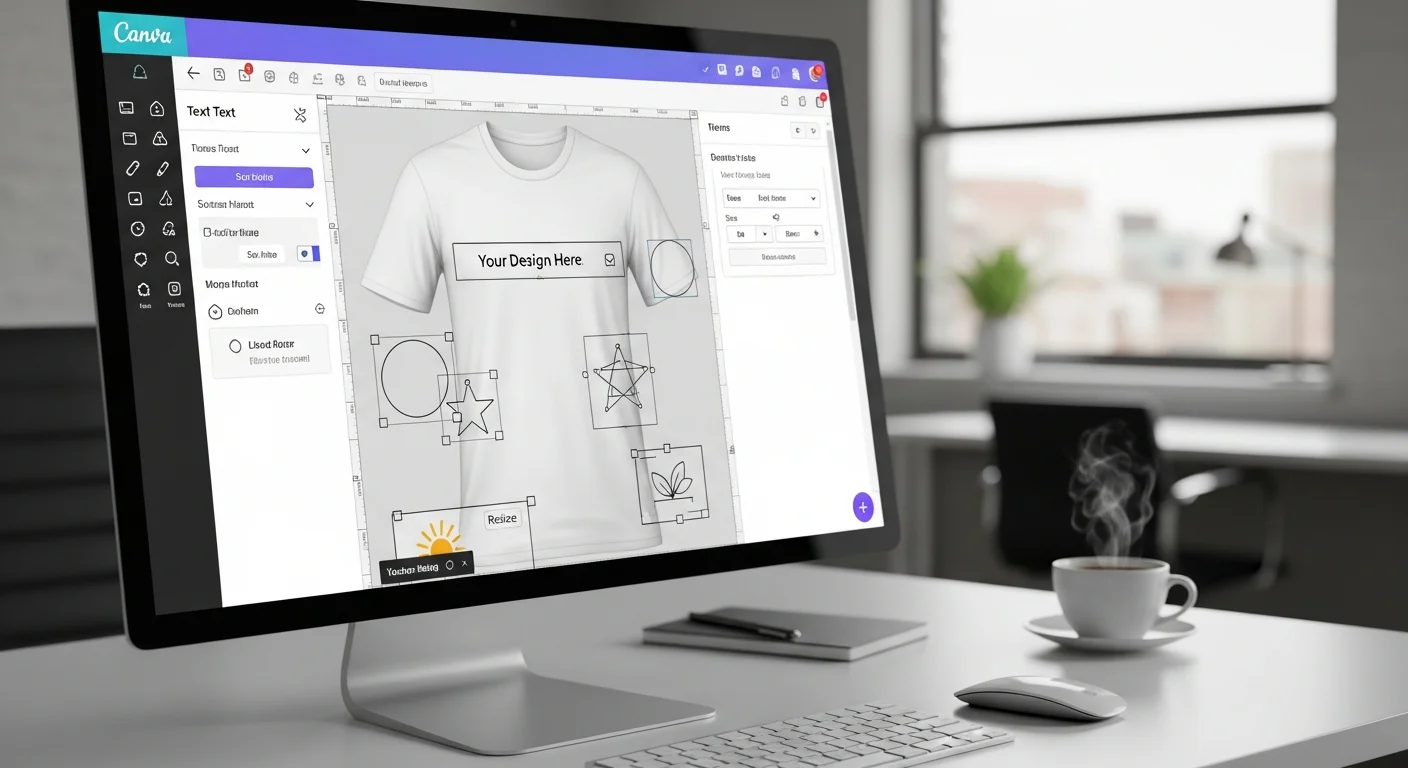
You do not need to be a professional graphic designer or own expensive software to create stunning design t-shirt artwork Canva projects that look like they came from a design agency. Canva has democratized graphic design by providing an intuitive, browser-based platform that puts professional-quality tools at everyone's fingertips. With millions of templates, graphics, fonts, and effects available in both free and paid tiers, Canva is arguably the most accessible tool for creating custom apparel artwork from scratch.
This step-by-step guide walks you through the entire process of creating t-shirt-ready artwork in Canva, from setting up your canvas at the correct dimensions to exporting a print-quality file that your custom t-shirts provider will love. Whether you are designing a single shirt for yourself, creating matching shirts for an event, or building designs for a small t-shirt business, every step is covered with practical tips and common pitfalls to avoid.
Why Canva Is Perfect for T-Shirt Design
Canva for t-shirt design works exceptionally well because the platform was built around the concept of making design accessible to non-designers. Unlike Adobe Illustrator or Photoshop, which have steep learning curves and significant subscription costs, Canva provides a drag-and-drop interface that feels familiar to anyone who has used basic office software or social media tools. You can start creating within minutes of opening the platform.
The platform's extensive library of templates, graphics, and fonts eliminates the "blank canvas" anxiety that stops many beginners before they start. Instead of staring at an empty workspace wondering where to begin, you can browse thousands of t-shirt-specific templates, modify one that catches your eye, or combine elements from multiple templates into something entirely new. This template-first approach accelerates the design process dramatically.
Canva's browser-based architecture means you can design from any device with an internet connection. Start a design on your laptop during lunch, make adjustments from your phone on the commute home, and finalize it from your tablet on the couch. Your work saves automatically to the cloud, eliminating the risk of lost files and making collaboration with others seamless.
Cost accessibility is another major advantage. Canva's free tier includes thousands of templates, hundreds of thousands of graphics and photos, and all the essential design tools needed for t-shirt artwork. The Pro tier, available for a modest monthly subscription, unlocks additional features like background removal, brand kit management, and access to the full library of premium graphics. For most t-shirt design projects, the free tier provides everything you need.
Setting Up Your Canvas Dimensions
The first and most important step in creating print-ready t-shirt artwork in Canva is setting up your canvas at the correct dimensions. Getting this right from the start prevents scaling issues, resolution problems, and awkward proportions that require starting over. Canva allows you to create custom-dimension canvases, which is essential because t-shirt print areas do not match any of the platform's standard preset sizes.
For a standard front chest print, set your canvas to 4,500 by 5,400 pixels. This creates a 15-by-18-inch workspace at 300 DPI, which is the standard print resolution for professional-quality t-shirt printing. This dimension accommodates the maximum print area on most adult-sized shirts and provides enough resolution for sharp, detailed printing.
Canvas Setup Steps
To create a custom canvas in Canva, click "Create a Design" on the home screen, then select "Custom Size" from the dropdown. Enter your width and height in pixels, not inches, because Canva works natively in pixels. Click "Create new design" and your workspace appears at the exact dimensions needed for t-shirt printing. Name your design something descriptive like "Summer Party Shirt Front" so you can find it easily later.
If your design includes both front and back artwork, create separate canvases for each panel. Do not try to fit both designs on a single canvas, as they may require different dimensions. The back panel of a shirt typically allows for a larger print area, so a 4,500 by 5,100 pixel canvas works well for full-back designs. For left chest logos or pocket prints, a smaller canvas of 1,200 by 1,200 pixels at 300 DPI provides the correct proportions.
| Print Location | Canvas Size (pixels) | Print Size (inches) | Resolution |
|---|---|---|---|
| Full Front | 4,500 x 5,400 | 15 x 18 | 300 DPI |
| Full Back | 4,500 x 5,100 | 15 x 17 | 300 DPI |
| Left Chest | 1,200 x 1,200 | 4 x 4 | 300 DPI |
| Pocket Print | 900 x 900 | 3 x 3 | 300 DPI |
| Sleeve Print | 1,050 x 1,350 | 3.5 x 4.5 | 300 DPI |
Using Templates as Starting Points
Canva t-shirt templates provide excellent starting points that accelerate the design process. Rather than building from a blank canvas, searching for "t-shirt" in Canva's template library reveals hundreds of professionally designed layouts that you can customize to match your vision. These templates handle the heavy lifting of composition, color harmony, and typography pairing, leaving you free to focus on personalization.
When selecting a template, look for designs that match the general mood and style you want to achieve. If you need a vintage band shirt look, search for "retro" or "vintage" templates. For a corporate team shirt, search for "professional" or "minimal" designs. For event shirts, search for "celebration" or "party" templates. The closer the template matches your intended direction, the less modification you will need to do.
To customize a template, click on any element to select it. Change text by double-clicking and typing your content. Swap colors by clicking on colored elements and using the color picker. Replace graphics by deleting existing elements and dragging in new ones from the elements panel. Resize and reposition elements by clicking and dragging their handles. Every element in a Canva template is fully editable, giving you complete control over the final design.
If you find elements in a template that you do not need, simply select and delete them. Templates are designed to demonstrate possibilities, not dictate final designs. Removing unnecessary elements often improves a design by reducing visual clutter and focusing attention on your core message. Remember that t-shirt designs viewed at a distance need to be bold and legible, which sometimes means less is more.
Adding and Styling Text

Text-based t-shirt designs are among the most popular custom shirt styles, and Canva provides powerful typography tools that make professional text layouts accessible to everyone. The platform offers hundreds of free fonts and thousands more with Canva Pro, covering everything from clean sans-serifs to ornate display faces, vintage scripts, and bold brush fonts.
To add text, click "Text" in the left sidebar and choose from heading, subheading, or body text presets, or click "Add a text box" for a completely unstyled starting point. Type your content, then use the top toolbar to select fonts, adjust sizes, change colors, set alignment, and modify spacing. Canva's text tools are intuitive enough that most users can achieve professional-looking typography within minutes of their first use.
Font Selection Tips for T-Shirts
Choosing the right font is critical because typography on t-shirts must be legible from a distance while conveying the design's personality. Bold, thick fonts work best for t-shirts because they maintain readability at arm's length and beyond. Avoid thin, delicate fonts that look elegant on screen but disappear when printed on fabric. For detailed typography guidance, our best fonts for t-shirt designs guide covers this topic comprehensively.
Limit your design to two fonts maximum. One font for the primary message and a complementary font for secondary text creates visual hierarchy without chaos. Pairing a bold sans-serif for the headline with a simple serif for the subtitle is a classic combination that works across virtually all design styles. Avoid using decorative fonts for large blocks of text as they become difficult to read.
Text Effects and Styling
Canva offers text effects that can enhance your t-shirt design, including shadow, lift, hollow, splice, and echo effects. These effects add dimension and visual interest to text-based designs. Use effects sparingly, as a single well-applied effect has more impact than multiple effects competing for attention. The shadow effect is particularly useful for ensuring text readability against busy background elements.
Letter spacing and line height adjustments can dramatically improve your text layout. Increasing letter spacing, also known as tracking, gives text a more modern, airy feel, while tightening spacing creates a denser, more impactful appearance. Line height, the space between lines of text, should be adjusted so that multi-line text reads comfortably without lines feeling cramped or disconnected.
Working with Graphics, Shapes, and Elements
Canva's graphics library for t-shirt design contains millions of illustrations, icons, shapes, and decorative elements that can be combined to create unique designs. The Elements panel on the left sidebar provides access to this library through search and category browsing. Searching for keywords related to your design theme surfaces relevant graphics that can be dragged directly onto your canvas.
Free elements are marked with no special indicator, while premium elements show a crown icon. For most t-shirt designs, the free element library provides more than enough variety. If you find a premium element that perfectly matches your vision, Canva Pro subscription unlocks the entire library, or you can purchase individual elements on a one-time basis.
Layering multiple elements creates complex, professional-looking compositions. Use Canva's "Position" tools to arrange elements in front of or behind each other, creating depth and visual interest. Group related elements together using the "Group" function so they move and scale as a unit. This prevents accidental misalignment when adjusting the overall layout.
Color customization of graphics ensures your design maintains a cohesive palette. Click on any graphic element and use the color picker to change its colors to match your design scheme. This feature is invaluable for creating coordinated designs where all graphic elements share the same color family as your text and other design components.
Uploading Your Own Images
While Canva's built-in library is extensive, many t-shirt designs require custom images uploaded to Canva. Team logos, personal photographs, hand-drawn artwork, and brand assets all need to be uploaded to Canva before they can be incorporated into your design. The upload process is straightforward and supports common image formats including PNG, JPEG, SVG, and PDF.
To upload images, click "Uploads" in the left sidebar, then click "Upload files" or drag and drop files directly from your computer. Uploaded images appear in your uploads library and can be dragged onto any canvas. For best results, upload images at the highest resolution available, as you can always scale down but scaling up reduces quality.
When uploading logos or graphics that need transparent backgrounds, use PNG format with transparency preserved. JPEG files will always include a white or colored background that may clash with your shirt color. If your logo is only available as a JPEG, use Canva's background remover tool (available in Canva Pro) to eliminate the background before placing it in your design.
Organization becomes important as your uploads library grows. Create folders within the uploads section to categorize your assets by project, client, or type. This organizational step saves significant time when you return to Canva for future design projects and need to locate previously uploaded assets quickly.
Background Removal for T-Shirt Designs
Background removal is one of the most critical skills for t-shirt design because printed shirts require artwork with transparent backgrounds. Any visible background in your design will print as a solid block of color on the shirt, which is rarely the intended effect. Canva Pro's Background Remover tool uses AI to detect and remove backgrounds from photos and graphics with impressive accuracy.
To remove a background, select the image on your canvas, then click "Edit Image" in the top toolbar and select "Background Remover." Canva processes the image and removes the background automatically. For most images, the result is clean and accurate. For complex images with fine details like hair or transparent objects, you may need to use the manual erase and restore brushes to refine the edges.
If you are using the free version of Canva, third-party tools like remove.bg can handle background removal before you upload your image. Process your images through these tools first, save as PNG with transparency, then upload the transparent version to Canva. This workaround provides similar results to Canva Pro's built-in tool at no cost.
Always verify your background removal on multiple shirt colors. A background removal that looks perfect against a white background might reveal edge artifacts against a dark shirt color, or vice versa. Preview your design against several potential shirt colors to ensure the removal is clean in all contexts before finalizing your order.
Layer Management and Organization
As your Canva t-shirt design becomes more complex, proper layer management prevents frustration and ensures precise control over every element. Each object you add to the canvas exists on its own layer, and the stacking order of these layers determines which elements appear in front of or behind others. Managing this hierarchy is essential for creating polished, professional designs.
Use the "Position" option in the right-click menu or the top toolbar to move elements forward or backward in the stacking order. "Bring to front" and "Send to back" handle extreme repositioning, while "Bring forward" and "Send backward" adjust one layer at a time for precise control. This layering system allows you to create depth effects, overlay text on graphics, and build complex compositions that read correctly.
Grouping related elements simplifies management as designs become complex. Select multiple elements by clicking on each while holding the Shift key, then right-click and select "Group." Grouped elements move, scale, and rotate together, maintaining their relative positions. If you need to edit an individual element within a group, double-click the group to enter it, make your changes, then click outside the group to exit.
Naming layers and using consistent positioning habits keep your workspace organized. While Canva does not offer named layers like professional design software, you can achieve similar organizational clarity by consistently placing background elements at the back, graphic elements in the middle, and text at the front. This systematic approach makes it easy to locate and modify specific elements even in complex multi-element designs.
Color Customization and Palette Selection
Choosing the right color palette for t-shirt design impacts both the visual appeal and printability of your artwork. Canva provides several tools for color management, including a color wheel, hex code input, custom palette creation, and color extraction from uploaded images. These tools help you create cohesive color schemes that translate well from screen to fabric.
Consider your shirt color when selecting design colors. Light-colored designs work best on dark shirts, and dark designs pop on light shirts. High contrast between your design colors and the shirt color ensures maximum visibility and impact. Low-contrast combinations may look sophisticated on screen but can disappear or muddy on the printed garment.
Canva's brand kit feature, available in Pro, allows you to save custom color palettes, fonts, and logos for consistent branding across multiple designs. If you are creating shirts for a team, business, or recurring event, setting up a brand kit ensures every design maintains visual consistency. Even without Pro, noting your hex color codes in a document provides a manual reference for maintaining consistency. Explore our color theory guide for deeper insights into effective apparel color combinations.
Be mindful of the number of colors in your design, especially if you plan to use screen printing. Each additional color increases screen printing costs because each color requires a separate screen and pass. Limiting your palette to two to four colors keeps screen printing affordable while still providing enough variation for visually interesting designs. DTG printing has no such limitation, allowing unlimited colors at no additional cost.
Exporting Print-Ready Files from Canva

The final step in creating your t-shirt artwork in Canva is exporting the design as a print-ready file. Canva's export options determine the file format, resolution, and transparency handling of your final artwork. Getting these settings right ensures your printer receives a file that produces professional-quality results.
For most t-shirt printing, export as PNG with a transparent background. Click "Share" in the top right corner, then "Download." Select "PNG" as the file type and check the "Transparent background" checkbox. This produces a high-quality PNG file with no background that your printer can use directly. The resulting file will be at the resolution of your original canvas dimensions.
Export Settings Checklist
Before downloading your final file, verify these settings: File type is set to PNG. Transparent background is checked, assuming your design does not include an intentional background. Quality slider is set to maximum, which is the default in Canva. Only the correct page or artboard is selected if your project includes multiple designs. These settings produce the best quality file for t-shirt printing. For more on file formats, see our file formats guide.
If your printer requests PDF format, Canva can also export to PDF. Select "PDF Print" as the file type for the highest quality PDF output. This option embeds fonts and maintains vector elements where possible, producing a print-quality document. Note that PDF export does not support transparent backgrounds, so this option works best for designs that include an intentional background or for printers who handle background removal in their workflow.
After downloading, open your exported file on your computer to verify it looks correct before submitting to your printer. Check that text is rendered clearly, colors appear as expected, transparency is properly applied, and no elements were clipped or cut off during export. This final quality check prevents surprises when your printed shirts arrive.
Canva Free vs Pro for T-Shirt Design
Understanding the differences between Canva Free and Pro helps you decide whether the paid subscription is worth the investment for your t-shirt design needs. Both tiers provide powerful design capabilities, but Pro unlocks features that can significantly streamline the apparel design workflow.
| Feature | Canva Free | Canva Pro |
|---|---|---|
| Templates | 250,000+ | 610,000+ |
| Graphics/Elements | Hundreds of thousands | 100+ million |
| Background Remover | Not available | Included |
| Brand Kit | Not available | Included |
| Custom Fonts Upload | Not available | Included |
| Resize Designs | Manual recreation | One-click resize |
| PNG Transparent Export | Available | Available |
| Storage | 5 GB | 1 TB |
| Price | Free | $12.99/month |
For occasional t-shirt design projects, the free tier provides everything you need. You can create custom-dimension canvases, access extensive font and graphic libraries, style text and elements with professional tools, and export print-quality PNG files with transparent backgrounds. The free tier's limitations primarily affect power users and professional designers who create apparel designs regularly.
For frequent t-shirt designers, small business owners, or teams creating multiple designs, Canva Pro's background remover alone justifies the subscription cost. The ability to quickly remove backgrounds from uploaded photos and graphics without switching to a separate tool streamlines the workflow considerably. The brand kit feature also ensures consistency across multiple designs, which is essential for business branding and team merchandise.
Tips for Professional-Quality Results
Elevating your Canva t-shirt designs from amateur to professional requires attention to several design principles that transcend any specific tool. These tips apply whether you are creating your first design or your fiftieth, and they consistently separate polished, print-worthy artwork from designs that feel unfinished or unprofessional.
Keep designs simple and focused. The most impactful t-shirt designs communicate a single message or concept clearly. Resist the temptation to add more elements, more text, or more colors. Each addition competes for attention, and a cluttered design fails to communicate any message effectively. When in doubt, remove an element and see if the design improves. More often than not, subtraction enhances a design more than addition. Check our guide on design tips that actually sell for more professional strategies.
Use alignment and spacing intentionally. Canva provides alignment guides that appear as you move elements, showing when edges or centers align with other elements on the canvas. Snap to these guides consistently to create organized, professional layouts. Equal spacing between elements creates visual harmony, while inconsistent spacing looks careless and unprofessional.
Preview your design at actual print size before finalizing. Zoom your canvas to 100% and hold your screen at arm's length to simulate how the design will look on a worn shirt. Text should be legible, graphics should be clear, and the overall composition should read from a distance. If anything feels too small or too detailed to read at arm's length, simplify or enlarge those elements.
Test your design against multiple shirt colors using mockup tools. What looks stunning on a white background might lose impact on a dark shirt, or vice versa. Most custom t-shirt providers offer virtual mockup tools that show your design on various shirt colors and styles. Use these previews to confirm that your design works on your intended shirt color before placing your order. Our mockup and preview guide walks through this process in detail.
Frequently Asked Questions
Can I use Canva designs for commercial t-shirt sales?
Yes, Canva's license allows commercial use of designs created with their free and Pro elements. However, you cannot trademark a design that uses Canva's stock elements without substantial modification. If you are building a t-shirt brand, modify template elements significantly or create original artwork using Canva's tools rather than relying solely on stock graphics. Always review Canva's current license terms for the most up-to-date commercial use policies.
What is the best export format for t-shirt printing from Canva?
PNG with transparent background is the best export format for t-shirt printing from Canva. This format preserves your design quality, supports transparency, and is accepted by virtually all custom shirt printers and print-on-demand platforms. Export at the maximum quality setting for the best results.
Do I need Canva Pro to design t-shirts?
No, Canva Free provides all the essential tools needed to design professional t-shirt artwork. You can create custom-size canvases, access thousands of fonts and graphics, style text with effects, and export print-quality PNG files. Canva Pro adds convenience features like background removal and brand kits, but these are enhancements rather than necessities.
How do I ensure my Canva design prints at high quality?
Set your canvas dimensions in pixels to achieve 300 DPI at your intended print size. For a standard front print area of 15 by 18 inches, use a canvas of 4,500 by 5,400 pixels. Export as PNG at maximum quality with transparent background. Avoid using low-resolution uploaded images, as these will appear blurry in the final print regardless of your canvas size.
Start Designing Your Custom Shirt in Canva
Creating professional t-shirt artwork in Canva is genuinely accessible to everyone, regardless of design experience or budget. The platform's intuitive tools, extensive libraries, and powerful export options put custom apparel design within reach of anyone with a creative vision and an internet connection. Follow the steps in this guide, pay attention to dimension and resolution requirements, and you will produce print-ready artwork that rivals what professional designers create.
Once your Canva design is exported and ready, upload it to our design studio to preview it on real shirt mockups and place your order. Explore our full custom t-shirts collection for fabric options, styles, and pricing. Visit how it works to see the complete ordering process from design to delivery.
Related Articles
Share this article
Written by
Tony Vu
Founder & President of RareCustom. Tony is committed to making custom merchandise accessible to everyone, and his Canva tutorials help beginners create professional designs without expensive software.