T-Shirt Printing File Formats Explained: PNG, SVG, AI, and What Your Printer Actually Needs
Understand t-shirt printing file formats including PNG, SVG, AI, EPS, and PDF. Learn resolution requirements, color modes, and how to prepare print-ready artwork.
Tony Vu
Founder & President of RareCustom. With an engineering background and 15+ years in production, Tony understands the technical requirements that ensure custom designs translate perfectly from screen to shirt.
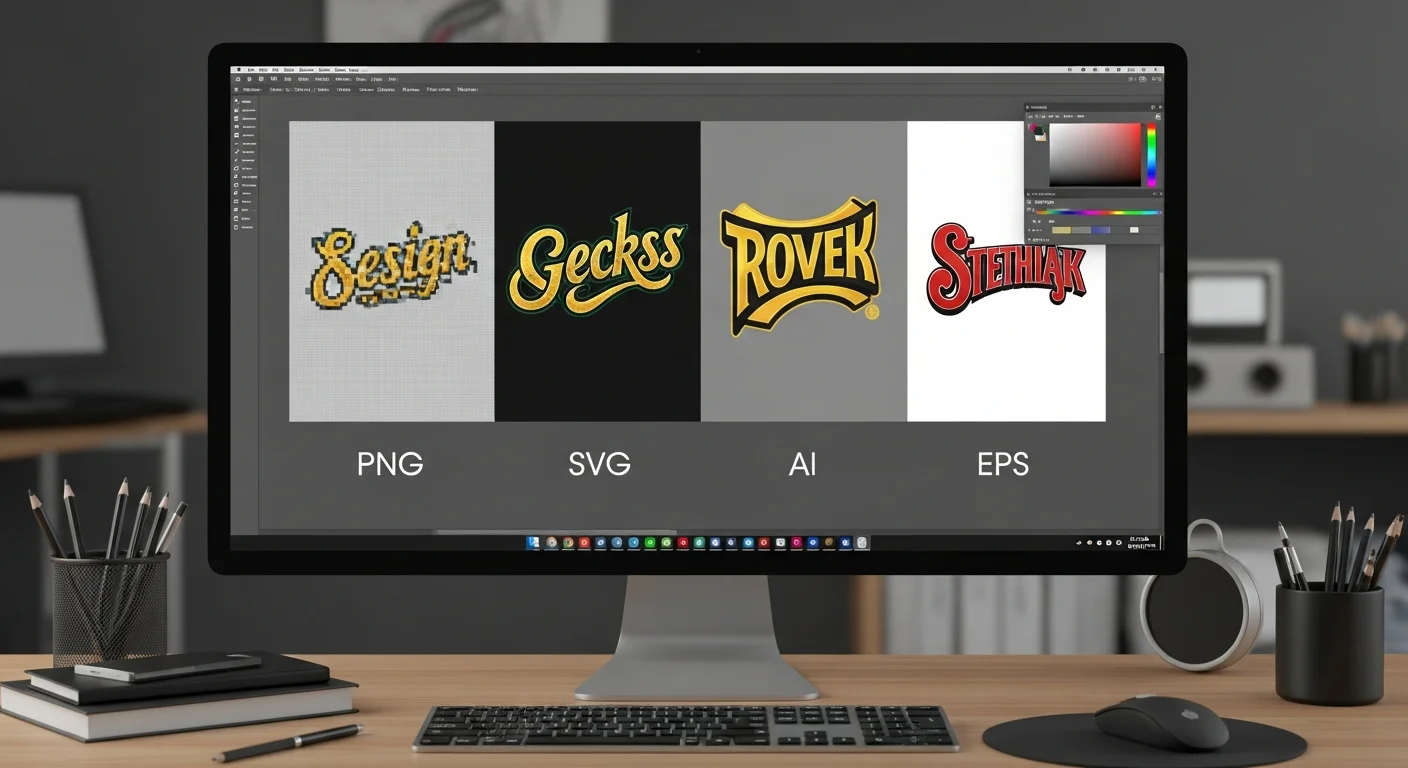
You have spent hours creating the perfect design for your t-shirt printing file formats project, only to have the printer reject your file or deliver results that look nothing like what you expected. This frustrating scenario plays out thousands of times every day, and the culprit is almost always the wrong file format, insufficient resolution, or incorrect color mode. Understanding which file format to use, why it matters, and how to prepare your artwork correctly can mean the difference between a professional-quality print and a blurry, pixelated disaster.
Whether you are designing for custom t-shirts through a print-on-demand service, working with a local screen printer, or submitting artwork for DTG (direct-to-garment) printing, this guide demystifies every major file format and helps you deliver print-ready artwork that produces stunning results every time. We will cover PNG, SVG, AI, EPS, PDF, and JPEG, explain when to use each, and show you how to avoid the most common file preparation mistakes.
Why File Format Matters for T-Shirt Printing
The file format you choose directly impacts every aspect of your printed shirt's quality. Resolution, color accuracy, scalability, transparency handling, and print method compatibility all depend on delivering the right file type to your printer. Submitting a JPEG when your printer needs a vector file, or providing a low-resolution PNG for a large-format design, creates problems that no amount of post-processing can fix.
Different printing methods require different file types. Screen printing typically demands vector files or high-resolution separated artwork. DTG printing works well with high-resolution PNG files that include transparency. Sublimation printing requires specific color profiles and resolution standards. Heat transfer vinyl needs clean vector paths for the cutting machine. Understanding these requirements before you start designing saves time, money, and frustration. Our guide on screen printing vs DTG explains how print methods affect file requirements.
File format also determines how well your design scales across different shirt sizes. A design created at the right resolution for a medium shirt might look perfectly sharp, but when the same design is scaled up for a 3XL, pixel artifacts can become visible if the source file was raster-based at too low a resolution. Vector formats avoid this problem entirely, which is one reason professional designers often prefer them for apparel work.
Color fidelity between your screen and the finished print depends partly on your file format's color space support. Some formats handle CMYK color profiles natively, while others are limited to RGB. Choosing the right format for your printing method's color requirements ensures that the vibrant red on your monitor translates to an equally vibrant red on the fabric.
PNG for T-Shirt Printing
PNG (Portable Network Graphics) is the most commonly used raster format for custom t-shirt printing, and for good reason. PNG supports full transparency, meaning your design can have irregular edges, fade effects, and transparent backgrounds without any visible bounding box on the printed shirt. This transparency support makes PNG the preferred format for DTG printing, where the printer lays ink directly onto the fabric.
The key to using PNG effectively for t-shirt printing is resolution. For sharp, professional results, your PNG file should be at least 300 DPI (dots per inch) at the actual print size. If your design will be printed at 12 inches wide, your PNG should be 3,600 pixels wide at minimum. Many professional printers prefer even higher resolutions of 300 to 450 DPI for optimal detail reproduction on fabric.
PNG files also support 24-bit color, providing over 16 million color combinations that capture gradients, photographic elements, and subtle color transitions with excellent fidelity. This makes PNG ideal for photorealistic designs, complex illustrations with gradients, and artwork that includes photographic elements. The format's lossless compression ensures that saving and reopening the file does not degrade quality, unlike some other formats.
One limitation of PNG is file size. High-resolution PNG files with transparency can become quite large, sometimes exceeding 100 MB for complex designs at print resolution. Most file upload systems can handle these sizes, but if you encounter upload limitations, check whether your printer accepts alternative delivery methods for large files.
SVG and Vector Formats for Custom Shirts
SVG (Scalable Vector Graphics) represents designs as mathematical equations rather than pixel grids, which means SVG files can be scaled to any size without losing quality. Whether you are printing a small chest logo or a massive back-panel design, the SVG file produces crisp, clean edges at every dimension. This infinite scalability makes SVG the preferred format for logos, text-based designs, and geometric artwork.
For vector-based t-shirt designs, SVG offers several advantages beyond scalability. File sizes are typically much smaller than equivalent raster files, making them easy to share, upload, and store. SVG files can be edited in any vector graphics application, allowing printers to make minor adjustments to color, sizing, or positioning without affecting quality.
SVG is particularly important for screen printing and heat transfer vinyl (HTV) production. Screen printers need clean vector paths to create accurate separations and stencils. HTV cutting machines follow vector paths to cut designs from vinyl sheets, and any raster artifacts in the file can cause cutting errors. If your design will be produced using either of these methods, submitting an SVG or equivalent vector format is not just recommended but often required.
The main limitation of SVG is that it handles photographic imagery and complex gradients less elegantly than raster formats. While SVG can technically include raster images and gradients, these elements defeat the purpose of using a vector format. Designs that combine photographs with vector elements typically require a hybrid approach, using vector elements for clean graphics and raster elements for photographic content.
AI and EPS Professional Design Files

Adobe Illustrator (AI) files are the gold standard in professional apparel design. AI files support multiple artboards, complex layer structures, advanced typography, and sophisticated color management including spot color definitions for screen printing. If you are working with a professional printer or a high-volume custom t-shirts producer, they will almost certainly prefer or accept AI files.
AI files preserve every aspect of your design exactly as you created it, including editable text, live effects, clipping masks, and gradient meshes. This editability is valuable for professional workflows where the printer might need to adjust trap settings, modify color separations, or fine-tune registration marks for multi-color screen printing.
EPS (Encapsulated PostScript) files serve a similar purpose but offer broader compatibility. While AI files require Adobe Illustrator to open and edit fully, EPS files can be opened by most professional design and prepress applications. Many screen printers still request EPS files because their prepress software handles EPS natively, and the format has decades of proven reliability in print production.
For most custom shirt orders, you will not need to create AI or EPS files yourself. These formats are primarily relevant for professional designers, branding agencies, and businesses that work with commercial printers on large-volume orders. If you do have access to your design in AI or EPS format, however, submitting it alongside your PNG gives the printer maximum flexibility in production.
PDF as a Print-Ready Format
PDF (Portable Document Format) has evolved far beyond its document-sharing origins to become a powerful print production format. A properly configured print-ready PDF can embed vector artwork, raster images, fonts, color profiles, and production marks in a single portable file. For t-shirt printing, PDF/X standards provide a reliable way to submit artwork with embedded fonts and accurate color specifications.
The advantage of PDF over other formats is its universality. Every operating system, design application, and prepress workflow can open and process PDF files. This eliminates the compatibility issues that sometimes arise with format-specific files like AI or proprietary design tools. When a printer says they accept "any file format," PDF is typically the safest choice.
PDFs also lock down your design elements in a way that prevents accidental modifications. Unlike editable AI or SVG files, a flattened PDF preserves your design exactly as you intended, ensuring that fonts render correctly, colors remain consistent, and layout elements stay in position. This is especially important when submitting designs with custom fonts that the printer might not have installed.
When creating a PDF for t-shirt printing, ensure you export at print resolution of 300 DPI minimum, embed all fonts, and set the appropriate color profile for your print method. Most design applications offer a "Print Quality" or "Press Quality" PDF export preset that handles these settings automatically.
JPEG Limitations for T-Shirt Printing
JPEG (Joint Photographic Experts Group) is the most widely recognized image format, but it presents significant challenges for t-shirt printing that make it a poor choice for most apparel projects. The fundamental issue is that JPEG uses lossy compression, meaning it permanently discards image data every time the file is saved. This compression creates visible artifacts, especially in areas of flat color, sharp edges, and text, which are exactly the elements most common in t-shirt designs.
The most critical limitation of JPEG for custom shirt printing is the absence of transparency support. Every JPEG file includes a rectangular background, which means your design will print with a visible rectangular block of color around it instead of blending seamlessly with the shirt fabric. While some printers can manually remove JPEG backgrounds, this introduces additional processing time and potential quality issues, especially around detailed edges.
JPEGs also suffer from generation loss. Each time you open, edit, and resave a JPEG file, additional compression artifacts accumulate. After several save cycles, text can appear fuzzy, edges become jagged, and colors shift noticeably. For this reason, even if you start with a high-quality JPEG, you should convert it to PNG immediately and work from the PNG going forward. Understanding these limitations helps you avoid the common mistakes that compromise print quality.
There are narrow circumstances where JPEG is acceptable for t-shirt printing. Full-coverage sublimation prints that cover the entire shirt surface can use JPEG because no transparency is needed, and the continuous-tone nature of photographic imagery actually compresses reasonably well in JPEG format. For every other t-shirt printing scenario, PNG or vector formats are superior choices.
Vector vs Raster: A Complete Comparison
Understanding the fundamental difference between vector and raster file types for t-shirt printing is essential for choosing the right format. Raster images, including PNG, JPEG, and TIFF, store design information as a grid of colored pixels. Vector files, including SVG, AI, EPS, and PDF, store design information as mathematical relationships between points, lines, and curves.
| Feature | Vector (SVG, AI, EPS) | Raster (PNG, JPEG) |
|---|---|---|
| Scalability | Infinite, no quality loss | Fixed, pixelates when enlarged |
| File Size | Small for graphics, logos | Large at high resolution |
| Best For | Logos, text, geometric art | Photos, gradients, complex art |
| Transparency | Full support | PNG yes, JPEG no |
| Editing | Individual elements editable | Pixel-level editing only |
| Color Accuracy | Spot color support | RGB or CMYK profiles |
| Screen Printing | Preferred | Requires conversion |
| DTG Printing | Requires rasterization | Preferred (PNG) |
| Heat Transfer Vinyl | Required for cutting | Not usable directly |
The practical takeaway is straightforward: if your design consists primarily of text, logos, shapes, and flat colors, create or obtain it as a vector file. If your design includes photographs, painterly textures, or complex color gradients, use a high-resolution PNG. Many professional designs combine both approaches, using vector elements for clean graphics and raster elements for textured or photographic components.
When in doubt, create your design in vector format first. You can always export a vector file to any raster format at any resolution, but you cannot convert a raster image into a true vector file without quality compromises. This "vector first" approach gives you maximum flexibility for any print method or size requirement.
Resolution Requirements by Print Method
Resolution for t-shirt printing varies depending on the print method, viewing distance, and design complexity. While 300 DPI is the universal safe standard, some methods can work with lower resolutions while others benefit from higher ones. Understanding these nuances helps you prepare files that meet your specific printing requirements without unnecessarily large file sizes.
DTG (Direct-to-Garment) Resolution
DTG printers typically operate at 300 to 600 DPI, making 300 DPI at print size the minimum standard. For designs with fine detail, thin lines, or small text, increasing to 400 DPI improves edge clarity. Most DTG printers accept files up to 600 DPI, but improvements beyond 400 DPI are often imperceptible on fabric due to the natural texture of the material absorbing and diffusing ink slightly.
Screen Printing Resolution
Screen printing resolution works differently because designs are separated into individual color layers printed through mesh screens. Vector files are ideal for screen printing because they define clean edges regardless of resolution. If you must submit a raster file for screen printing, 300 DPI at print size is the minimum, and simulated process prints benefit from 400 DPI or higher to maintain smooth gradients in the halftone pattern.
Sublimation Printing Resolution
Sublimation printing requires 200 to 300 DPI at print size because the dye-sublimation process inherently produces slightly softer edges than DTG or screen printing. The continuous-tone nature of sublimation means that 200 DPI images can appear perfectly acceptable for photographic designs, though 300 DPI remains preferable for designs with text or fine linework. Learn more about sublimation requirements in our heat transfer vs sublimation guide.
Color Modes: RGB vs CMYK for T-Shirt Design
The color mode of your design file determines how colors are defined, displayed, and ultimately printed. RGB (Red, Green, Blue) is the color mode used by screens and monitors, defining colors through light combinations. CMYK (Cyan, Magenta, Yellow, Key/Black) is the traditional print color mode, defining colors through ink combinations. Understanding which mode your print method requires prevents unexpected color shifts between screen and fabric.
DTG printing operates in a modified CMYK space plus white ink, but most DTG printers accept RGB files and handle the conversion internally. Submitting RGB files for DTG printing often produces more vibrant results because the printer's software is optimized to convert from the wider RGB color gamut. If your DTG printer specifically requests CMYK files, however, always honor that request.
Screen printing can use either CMYK process inks or spot colors, depending on the design. Spot color printing uses pre-mixed inks in specific Pantone or custom colors, delivering exact color matches that CMYK process printing cannot guarantee. If color accuracy is critical for your brand, specifying Pantone spot colors in your vector file ensures consistent results across different print runs and providers.
Sublimation printing uses a specialized CMYK ink set, and designs should be submitted in CMYK color mode or with an embedded ICC profile specific to the sublimation process. RGB-to-sublimation conversions often result in duller colors, especially in blues and greens, because the sublimation ink gamut does not fully cover the RGB color space. Converting to CMYK before submission allows you to adjust colors proactively rather than being surprised by the final result.
Preparing Files for Different Print Methods

Each t-shirt print method has specific file preparation requirements. Tailoring your file to the intended print method ensures the smoothest production process and the best final result. Here is a breakdown of what each major print method needs from your design file.
Files for Screen Printing
Screen printing requires color-separated artwork, ideally in vector format. Each color in your design becomes a separate screen, so designs with fewer colors are more cost-effective. Submit vector files (AI, EPS, SVG, or PDF) with each color on a separate layer. If submitting raster artwork, provide individual PNG files for each color layer with transparent backgrounds and registration marks. Most screen printers also need exact Pantone color specifications for ink mixing.
Files for DTG Printing
DTG printers prefer high-resolution PNG files at 300 DPI or higher with transparent backgrounds. The design should be saved at the exact print dimensions or larger, never smaller and scaled up. If your design includes white elements on a dark shirt, ensure those white areas are explicitly defined in your file rather than relying on background transparency, because the printer needs to know where to lay down the white ink base layer.
Files for Heat Transfer and Vinyl
Heat transfer vinyl (HTV) cutting machines require vector files with clean, closed paths. The machine follows these paths to cut shapes from vinyl sheets, which are then heat-pressed onto the shirt. Submit SVG or AI files with all text converted to outlines and all paths properly closed. Remove any unnecessary anchor points or overlapping paths that could confuse the cutting process. Detailed guidance on transfer methods is available in our printing methods comparison.
Common File Format Mistakes to Avoid
Even experienced designers make file preparation errors that compromise print quality. Knowing the most common mistakes helps you review your files before submission and catch issues that might otherwise result in reprints, delays, or disappointing results.
Submitting low-resolution files is the single most common mistake. A design that looks crisp on your phone screen at 72 DPI will print as a blurry, pixelated mess at that same resolution. Always check your file's dimensions in pixels and verify that it meets the 300 DPI minimum at your intended print size. If your design is 10 inches wide, your file should be at least 3,000 pixels wide.
Forgetting to flatten transparency layers causes problems with some print workflows. If your design uses multiple transparency effects, drop shadows, or blend modes, flatten these elements before exporting your final file. Unflattened transparency can cause unexpected rendering differences between your design application and the printer's processing software.
Using web-optimized images as source files is another frequent error. Images downloaded from websites, social media, or messaging apps have been compressed for fast loading, not print quality. These files lack the resolution and color fidelity needed for professional printing. Always work from original, full-resolution source files. Our beginner's design guide covers these fundamentals in detail.
Including bleed areas incorrectly or omitting them entirely can cause edge artifacts on printed designs. While most t-shirt printing does not require traditional bleed areas like paper printing does, all-over prints and designs that extend to the seams do need appropriate bleed settings. Check with your printer for their specific bleed requirements.
Free Tools for File Conversion and Preparation
You do not need expensive software to prepare print-ready artwork for t-shirts. Several free and open-source tools can handle format conversion, resolution adjustment, and basic vector editing. These tools make professional file preparation accessible regardless of your budget.
Inkscape is a free, open-source vector graphics editor that handles SVG creation and editing, AI and EPS import, and PDF export. It is capable enough for professional vector work and is the best free alternative to Adobe Illustrator for t-shirt design file preparation. Inkscape can also trace raster images into vector format, though results vary depending on the complexity of the original image.
GIMP (GNU Image Manipulation Program) is the free alternative to Photoshop for raster image editing. GIMP handles PNG creation and optimization, resolution adjustment, background removal, color mode conversion, and export to multiple formats. It is ideal for preparing photographic and complex raster designs at the correct resolution and color settings for t-shirt printing.
Canva offers a browser-based design platform with templates, graphics, and text tools specifically suited for apparel design. While Canva exports primarily to PNG and PDF, these formats cover most DTG and on-demand printing requirements. The platform's intuitive interface makes it accessible for beginners who may not be comfortable with professional design software. For a detailed walkthrough, check our Canva t-shirt design tutorial.
Our own design tool is built specifically for custom apparel, handling format requirements, resolution settings, and color preparation automatically. If you prefer to skip the technical details and focus purely on creativity, our platform ensures your design is print-ready regardless of your technical expertise.
Frequently Asked Questions
What is the best file format for custom t-shirt printing?
For most custom t-shirt orders, PNG at 300 DPI with a transparent background is the best all-around format. It works with DTG printing, most online custom shirt platforms, and print-on-demand services. For screen printing or vinyl cutting, vector formats like SVG or AI are preferred or required. When in doubt, ask your printer which format they prefer.
Can I use a JPEG file for my t-shirt design?
JPEG can work in limited circumstances, such as full-coverage sublimation prints, but it is generally a poor choice for t-shirt printing. The lack of transparency support means your design will include a visible rectangular background. Lossy compression also degrades fine details. Convert your JPEG to PNG before submitting for the best results.
What resolution should my t-shirt design file be?
The standard minimum is 300 DPI at the actual print size. If your design will print at 12 inches by 14 inches, your file should be at least 3,600 by 4,200 pixels. Higher resolutions up to 450 DPI improve fine details, but most printing methods cannot utilize resolutions above 600 DPI on fabric due to ink absorption characteristics.
What is the difference between RGB and CMYK for t-shirt files?
RGB defines colors using light (screens) and has a wider color range. CMYK defines colors using ink and reflects the actual printing process. Most DTG printers accept RGB and convert internally, while screen printing and sublimation may require CMYK files. Check with your printer for their specific color mode requirements to ensure accurate color reproduction.
Get Your Design Print-Ready Today
Understanding t-shirt printing file formats is the foundation of professional-quality custom apparel. Whether you are designing your first shirt or your hundredth, proper file preparation ensures your creative vision translates faithfully from screen to fabric. Take the guesswork out of the process by following the format guidelines, resolution requirements, and color mode recommendations outlined in this guide.
Ready to bring your design to life? Upload your artwork to our design studio, or browse our custom t-shirts catalog to get started. Our platform handles technical requirements automatically, so you can focus on what matters most: creating a design you will be proud to wear. Visit how it works for a step-by-step overview of the ordering process.
Related Articles
Share this article
Written by
Tony Vu
Founder & President of RareCustom. With an engineering background and 15+ years in production, Tony understands the technical requirements that ensure custom designs translate perfectly from screen to shirt.